Title here
Summary here
After registering your school in Skolar, there is an initial configuration you need to do in order for Skolar to able to adjust to your needs.
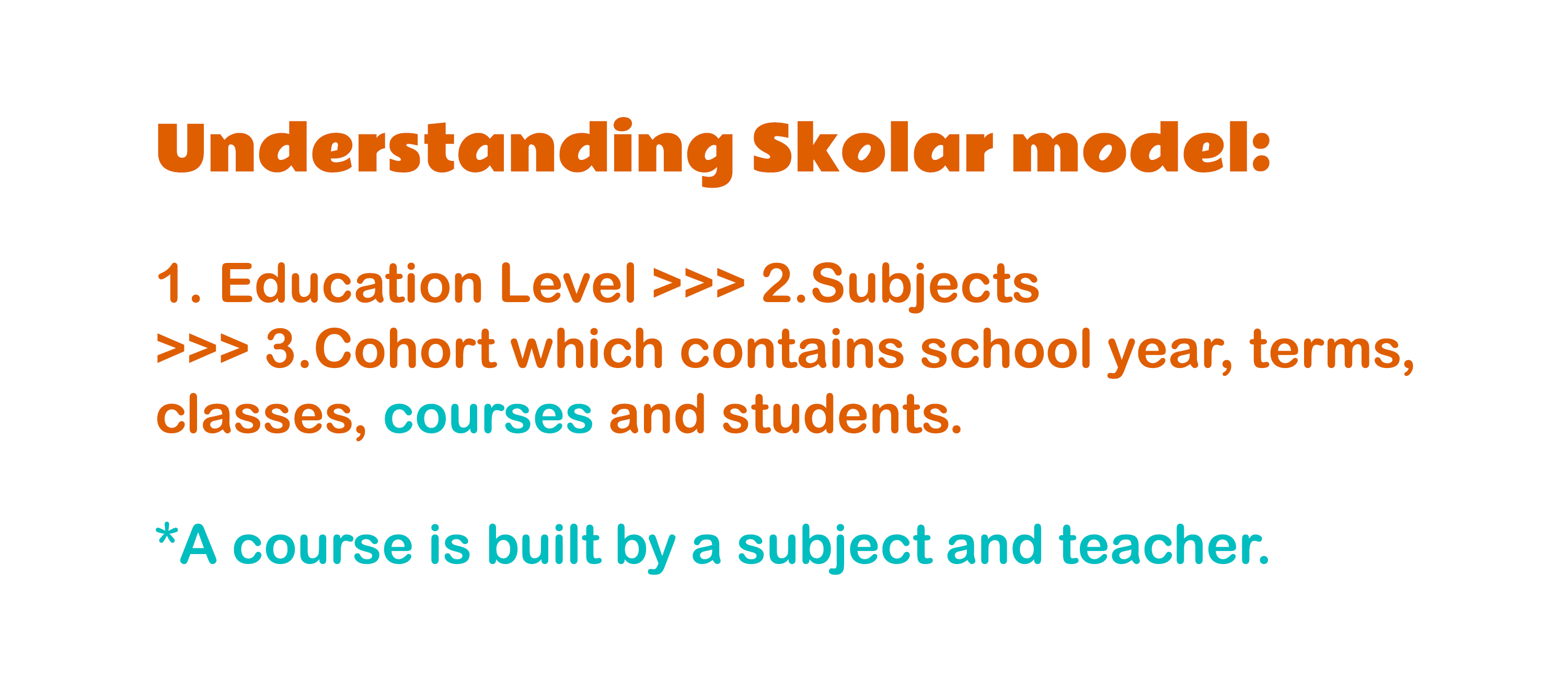
To quickly understand how Skolar manages classes and courses let have a quick look at the following image:
If your school has more than one education level, it is important to enable and configure each of them. Examples of education levels are:
Each of these education levels can have an independent duration for their cohort, school year and school terms. The easiest thing to do is go contact Skolar support via chat and let them know your specific needs.
Before you can create your first course or class, you will need to add your current teachers. This can be done from the main menu:
Employees > Search > Add employee
Initially, you can only add teachers, but you can also add other school staff, give permissions and enable time clock.
Subjects are created only once and are rarely modified. Subjects are needed in order to create a course.
This can be done from the main menu: More > Subjects > Add subjects.
Classes belong to a degree and contain multiple courses. For example, 1A class contains Mathematics, Science, English, etc. This can be done from the main menu: Classes > create class.
Once that you have at least one class, you can start adding courses to it. A course is built by a subject and a teacher, a schedule may be added to it later.
This can be done from the main menu: Classes > Click on class > Add course.
Adding students can be done from Students > Add student, log as much information as you need, you can also add guardians to the student.
Once you have at least one class you can start enrolling students. When enrolling a student you can also select the scholarship and the monthly payments selected by the guardian.
To enrol a student, you can use the Student search > Enrolments > Enrol.