Title here
Summary here
Introducing some important steps to set up your finance settings:
One of the most popular and useful features of Skolar is payments tracking, with this you are able to create debts reports and send payment reminders. First, you need to go to Finances > School fees > Add Fee
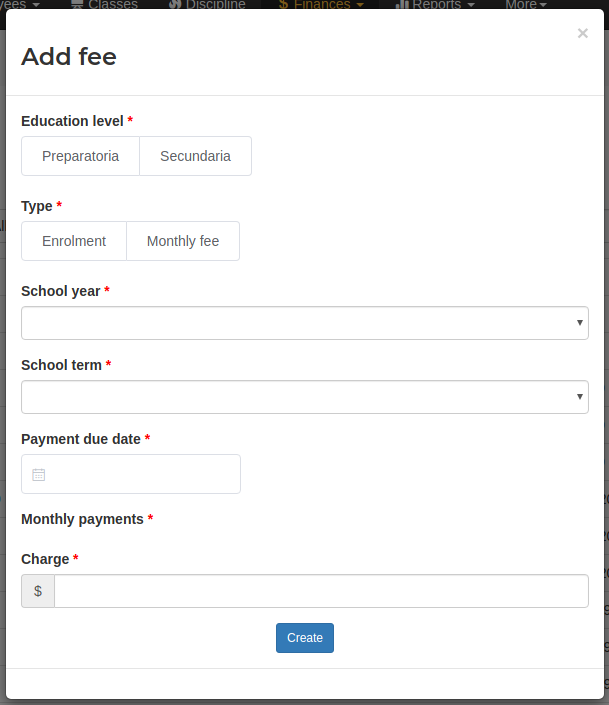
Education level: The education level which a fee belongs to. Type: If it is an enrollment (single payment) or a monthly fee (multiple, recurrent payments). For the recurrent payments, you can select the checkbox “Generate all the fees of a school year” and this will automatically generate all the monthly fees specified in the monthly payments field. The date of the payment will be the same as the calendar date specified in the “Payment due date” field. School year: The school year which a fee belongs to. Payment due date: The last day before a payment is considered a late payment. Monthly payments: Number of payments needed in the school term, for example: 5, 6 or 12. Charge: The price for a fee.
Similarly to school fees, creating products allow tracking sells like uniforms, books, documentation, etc.
In order to create product and stock, go to Finances > Products > Add product
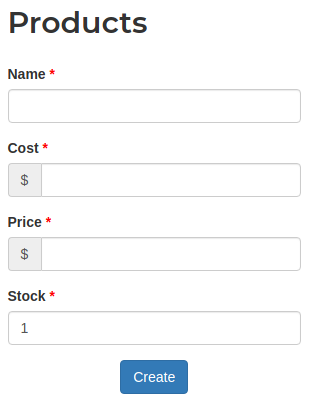
Name: The product name Cost: Expense incurred of a product being sold Price: The price set by the school Stock: Current stock for a product
Once you have created some school fees and products in Skolar, you may now proceed to payment. You have to search for a student and then go to its Financial tab and click on the Make payment button.
Shopping cart
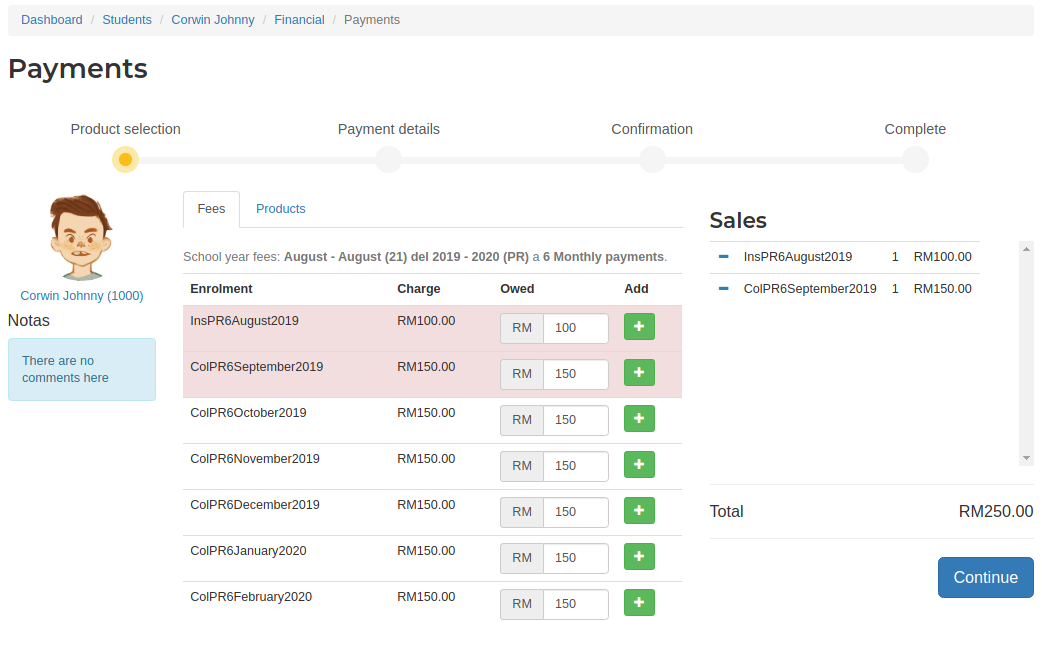
Here you can add the fees and products which the family or guardian of the student are paying for. Simply click on the “+” button to add the item to the cart. *If the student has a scholarship, the amount of the fee will be calculated appropriately based on the assigned percentage of the scholarship. When you have loaded all the items to the cart, click Continue.
There are 3 payment details options available:
Once you have selected the corresponding options, click on Pay, where you will then see a payment summary.
Please make sure all the details are correct at this point, then click on Make payment. If you checked the box send receipt by email, it will be sent immediately.